A Complete Guide
Step 1 of 6 — Locate the sticker
1. Find your laptop model number
Before ordering a replacement screen, find your laptop's exact model number. You can usually find it on a sticker underneath the laptop, inside the battery compartment, or in your laptop's system information.
Your laptop model helps narrow down compatible screens, but some laptop models are available with different screen options.

Tip: Use your laptop model as the starting point, but always confirm the screen details before buying.
2. Find the laptop LCD screen part number
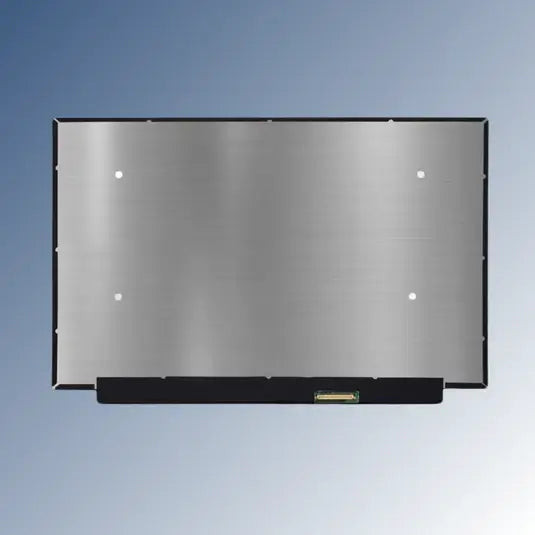
If your laptop model has multiple screen versions, remove the display bezel and check the label on the back of the screen panel.
The label is usually located near the display cable connector. This contains the information needed to identify your exact replacement screen.

Most important: The screen model number is the strongest way to confirm the correct replacement.
3. Read the correct number from the screen label
The screen label contains several numbers. Make sure you select the actual Screen Model Number.
Example:
NV156FHM-N4G
Do not use:
• Barcode numbers
• Serial numbers
• Factory production codes

Tip: The correct screen model number usually contains both letters and numbers.
4. Match all screen specifications
Two screens can look identical but still be incompatible. Always compare the full specifications before placing your order.
Check:
Screen Size
Resolution
Panel Type (IPS / TN / OLED)
Refresh Rate (Hz)
Screen Finish (Matte / Glossy)
Backlight Type

Important: Do not choose a replacement screen based only on size.
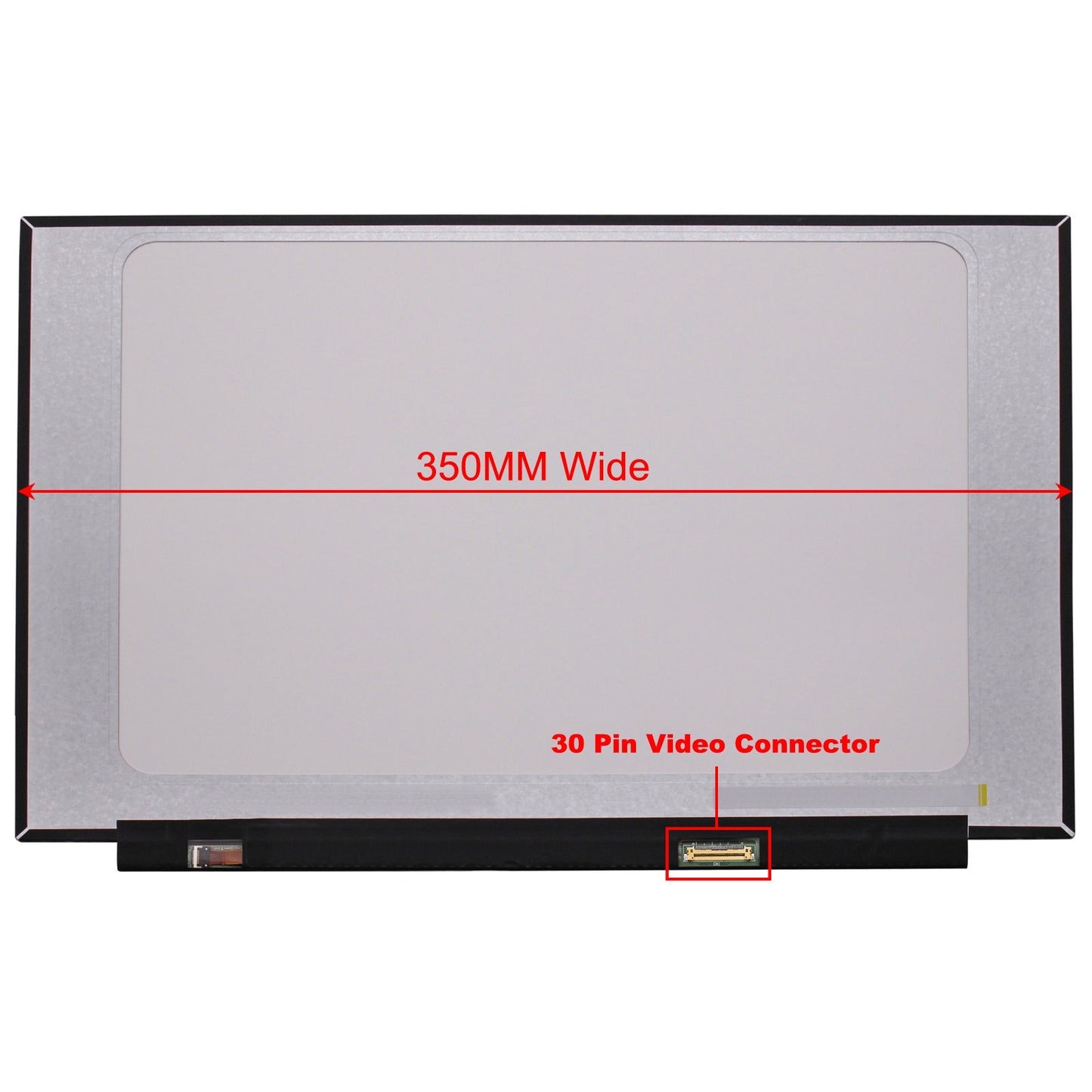
5. Check the connector type and pin count
The replacement screen connector must match your original screen exactly.
Confirm:
Connector Type (eDP / LVDS)
Pin Count (30 / 40 / 50 Pin)
Connector Position (Left / Right / Centre)

Warning: A different connector will not work, even if the screen size and laptop model match.
6. Confirm touch or non-touch screen
Check whether your original screen is:
Touch Screen
Non-Touch Screen
Touch and non-touch screens use different assemblies and cannot be swapped.

Tip: Always replace your screen with the same touch type as your original.
7. Final check before you order

Final Tip: Matching these details before ordering helps avoid receiving an incompatible replacement.
1. Find the label on your adapter
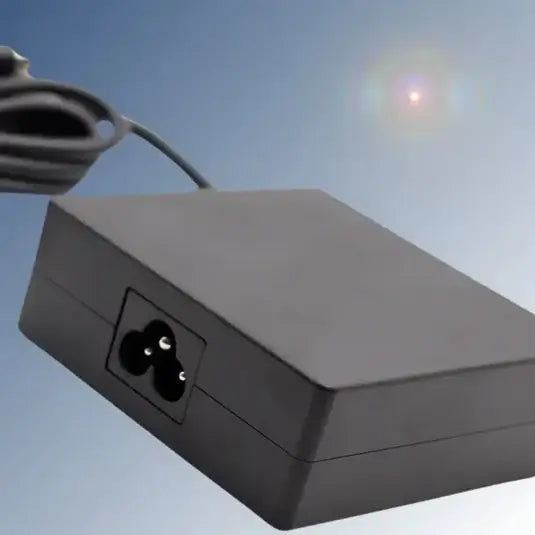
Turn your original charger over. The specs are printed directly on the adapter body (the "brick"), not on the laptop itself. Look for the Output Voltage (V), Output Current (A), Wattage (W) and Connector Size.

Tip: Check the bottom of the laptop, under the battery, or on the original box if you can't find your adapter's label.
2. Match every specification
Two adapters can look identical but still be incompatible. Here's what each spec means and what you need to look for:

Important: Voltage and connector size must be an exact match — current and wattage can be the same or higher.
3. Check the connector tip (OD x ID)
Even at the right voltage, the barrel plug has to physically fit. Measure the Outer Diameter (OD) and Inner Diameter (ID) of your original connector.

Tip:
Connector size is usually written as OD x ID (mm), for example 7.4 x 5.0mm.
4. Compare against common connector sizes
Use this reference chart to identify which connector shape and size matches your original adapter.

Must match: Connector size and shape must be identical to your original — even a slightly different size will not fit or make good contact.
5. Confirm the connector type: USB-C vs Barrel
Newer laptops charge over USB-C, while most older laptops use a round barrel connector. These are not interchangeable, so check which type your laptop uses first.

USB-C:
Reversible, supports Power Delivery (PD) — check both Voltage and PD wattage.
Barrel:
Round plug in many sizes — make sure OD x ID and voltage/wattage match.
6. Check the wattage recommendation
You can use an adapter with the same or higher wattage than your original. Never use a lower wattage adapter.

Warning: A lower wattage adapter may cause slow charging, failure to charge while in use, or the laptop refusing to power on.
7. Please check — final checklist
Here's the complete checklist in one image. Use it as a final check before you order.

Final Tip: Double-check every point above before ordering — a mismatched adapter can fail to charge, charge slowly, or in rare cases damage the laptop's charging circuit.
1. Find your laptop model number
Turn your laptop over and look for the Model Number / Product Name. You can usually find it on a sticker underneath the laptop, under the battery (if removable), or on the original box / invoice.

Tip: Use your laptop model as the starting point, but always confirm the keyboard details before buying.
2. Check keyboard layout & language
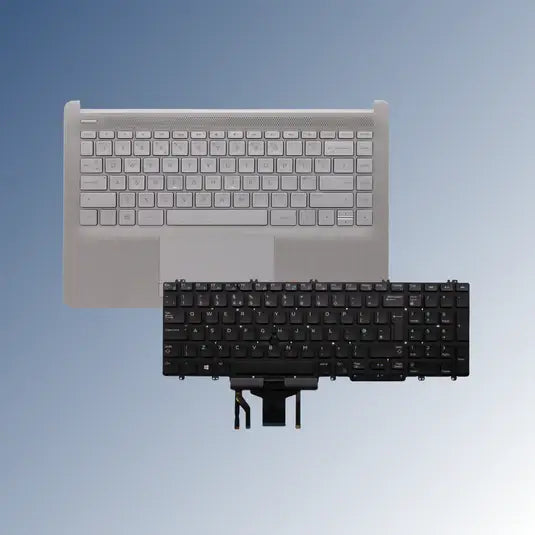
Keyboards are not universal. Match the layout, language, and Enter key shape with your original keyboard — for example US English, UK English, EU / International, or other languages such as Arabic or Thai.

Tip: Check for a Euro (€) symbol, an extra key next to Enter, or accented characters printed on the keys — these are quick giveaways of a UK/EU layout versus US English.
3. Check the keyboard connector
The type, width, and number of pins must be the same. Common connectors are 30-pin, 40-pin, 50-pin, and 60-pin / others.

Warning: Even a keyboard with the correct layout will not work if the connector pin count or width is different — always confirm the connector before ordering.
4. Check backlit & special keys
Some keyboards have backlighting, some don't, and some have special keys. Make sure the replacement matches your original.

Also check: Function keys (media, brightness, volume, etc.), power button position (if on keyboard), and the numeric keypad (if applicable).
5. Check the part number (if available)
Check the part number printed on the back side of the keyboard, if accessible — this is the fastest way to confirm an exact match.

Tip: Keyboards are model specific and NOT interchangeable between different laptop models — check every point carefully before ordering.
1. Find your laptop model number
Turn your laptop over and look for the Model Number / Product Name. You can usually find it on a sticker underneath the laptop, under the battery (if removable), or on the original box / invoice.

Tip: Use your laptop model as the starting point, but always confirm the palmrest details before buying.
2. Check keyboard cutout layout
Compare the keyboard cutout shape and key spacing with your original palmrest. The cutout must line up exactly with your keyboard.

Warning: Even small differences in cutout shape or spacing can cause the keyboard or keys not to fit.
3. Check touchpad & button layout
Match the touchpad size, button style, and position — whether it uses integrated buttons (one piece) or separate buttons (two / three buttons).

Also check: Fingerprint reader / indicator light position, if applicable.
4. Check other features & cutouts
All cutouts and features must be exactly the same — power button position, speaker grill cutouts, port / vent cutouts, and hinge hole position.

Tip: Make sure the number of screw holes and their positions are the same.
5. Check the part number (if available)
The part number is usually printed on the bottom of the palmrest — this is the fastest way to confirm an exact match.

Tip: Matching the part number is the best way to ensure 100% compatibility.
6. Important notes before ordering

Final Check Different laptop models may have different palmrest shapes even if they look similar — the keyboard and palmrest are model specific and NOT interchangeable.
1. Find your laptop model number
Turn your laptop over and look for the Model Number / Product Name. You can usually find it on a sticker underneath the laptop, under the battery (if removable), or on the original box / invoice.

Tip: Top lids are model specific, so always confirm the exact model number before buying — the same model can still use different lid options.
2. Check the top lid / back cover — all points must match
Compare your original top lid against the replacement using all of the points below. Every point listed must be the same:

1. Logo — same brand logo and logo position.
2. Colour & Finish — exact colour and surface finish (Glossy / Matte / Textured).
3. Hinge Position — left and right hinge positions must match.
4. Shape & Size — overall shape and size must be the same.
Important: All points above must be the same — the top lid will not be a correct fit if even one of them is different.
3. Check colour & finish
Top lids are available in different colours and finishes. Please match exactly with your original.

Tip: Even a small difference in shade or finish may be clearly visible after installation — compare in daylight if you can.
4. Check hinge position
Hinge positions must be exactly the same on both sides of the top lid.

Warning: If the hinge positions are different, the replacement lid will not line up with your base and screen, and will not fit properly.
5. Check the part number (if available)
Check the inside (back side) of the top lid for a part number sticker or printed label — this is the fastest way to confirm an exact match.

Tip: Matching the part number is the best way to ensure 100% compatibility.
6. Check shape & design
Compare the overall shape, edges, and design details with your original top lid.

Tip: Even minor design differences in edges, corners, or surface lines mean the lid will not fit or sit flush properly.
7. Check screw holes & back side
Compare the internal structure carefully with your original top lid — screw hole positions, brackets, and clips all need to line up exactly.

Correct: screw holes perfectly aligned, same number of screws, matching brackets & clips, identical internal frame, and the lid installs easily without forcing.
Incorrect: missing or extra screw holes, misaligned screw positions, different mounting clips, or an internal structure that doesn't match.
Warning: Even small differences in screw positions or internal layout can prevent proper fitting, cause gaps or pressure points, and damage the hinges or screen — always compare the back side of your original lid before ordering.
8. Final checklist before you order
Use this checklist as a final check before you place your order. If you're still unsure about any point, send our team clear photos of the laptop model sticker, the top lid (inside and outside), the hinge area, and the part number label, and we'll confirm compatibility for you.

Important: Top lids are model specific and NOT interchangeable. Please check all details carefully before placing your order — taking a few minutes now can save you time and cost later.


Collections
-
Screen Protectors
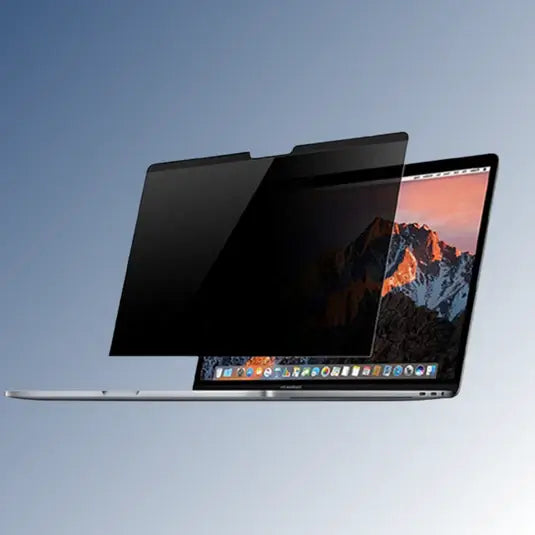
🛡️ Protective Screen Covers for Every Laptop Keep your laptop screen safe...